Title: Any Teacher Can Build Software with AI
Summary:
No coding background needed. Learn how to use Google Gemini to generate real, working code and deploy it as a live website using Google Sites. A step-by-step guide for teachers with no coding experience.
Key Ideas:
1. Step 1: Create a Google Site
2. Step 2: Use Google Gemini to Generate Code
3. Step 3: Copy the Generated Code
4. Step 4: Embed the Code into Google Sites
5. Step 5: Publish the Website
Permalink: https://aiaieducation.org/blog/create-software-with-ai
Full Post Body:
import PromptCallout from "../components/PromptCallout.jsx"
# Any Teacher Can Build Software with AI
This guide walks you through how modern developers use AI to design, prototype, and ship software efficiently. In this tutorial, you will use AI to generate real, working code and deploy it as a live website using Google Sites.
## Step 1: Create a Google Site
1. Go to [https://sites.google.com](https://sites.google.com)
2. Create a new blank website
3. Give your website a name (for example, *My Calendar Widget*)
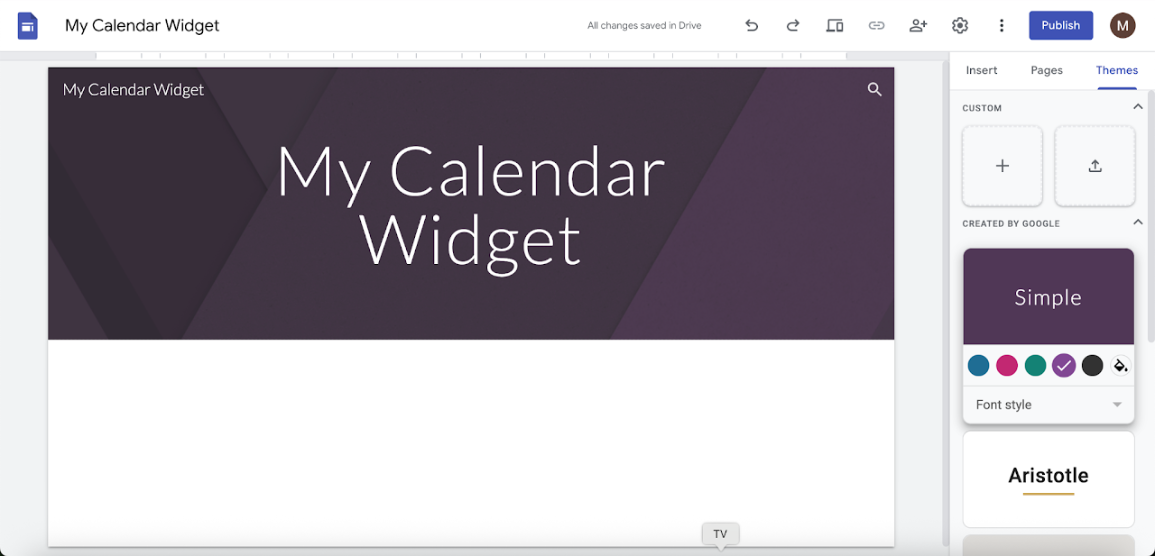
You may optionally customize the theme, colors, or font of your site. This step is not required, but it can make your project look more polished.
## Step 2: Use Google Gemini to Generate Code
Next, you will use an AI model to generate the software that will be embedded into your website.
1. Go to [https://gemini.google.com](https://gemini.google.com)
2. Ask the AI to generate software that can be embedded into Google Sites
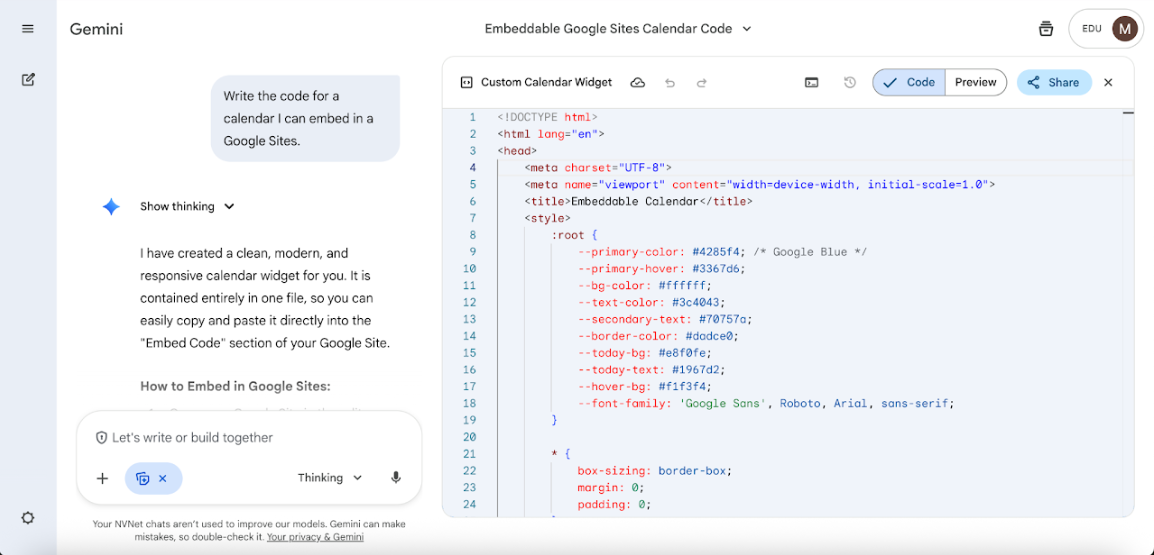
When working with AI, being specific is critical. Since Google Sites only accepts HTML embeds, your prompt should clearly request HTML.
{`Write the code for a calendar I can embed in a Google Sites website. The code must be written entirely in HTML.`}
Gemini will generate a complete block of HTML code. You can click the **Preview** button to see what the software looks like before embedding it.
## Step 3: Copy the Generated Code
1. Click the **Code** tab next to Preview
2. Select the entire code block
3. Copy it using right-click or `Ctrl + C`
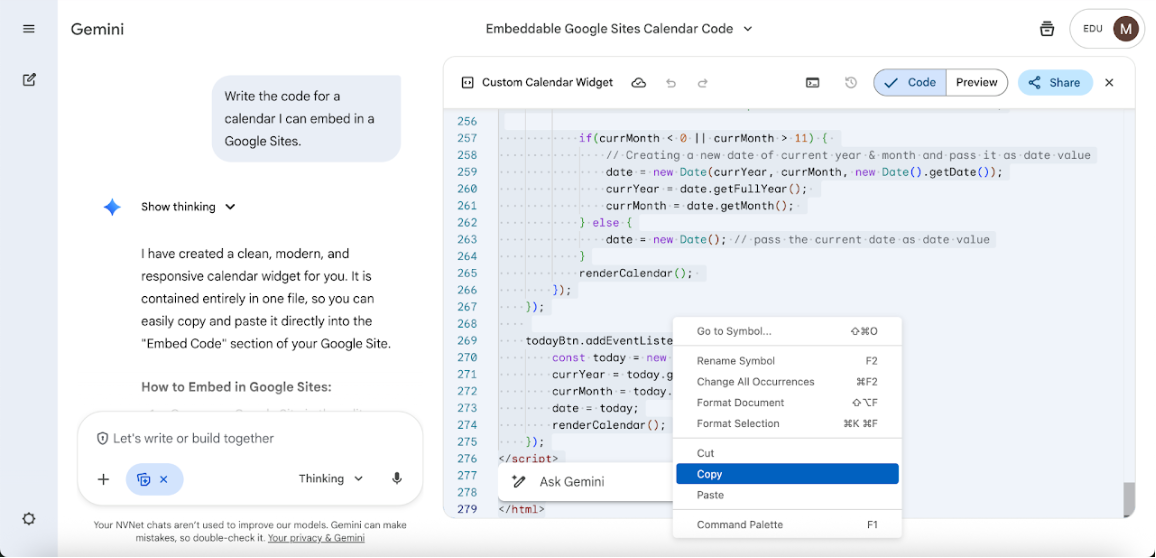
Make sure you copy **all** of the code. Partial copies may cause the embed to break.
## Step 4: Embed the Code into Google Sites
1. Return to your Google Site
2. Open the **Insert** panel on the right
3. Click **Embed**
4. Select **Embed code**
5. Paste the HTML code you copied earlier
6. Click **Next**, then **Insert**
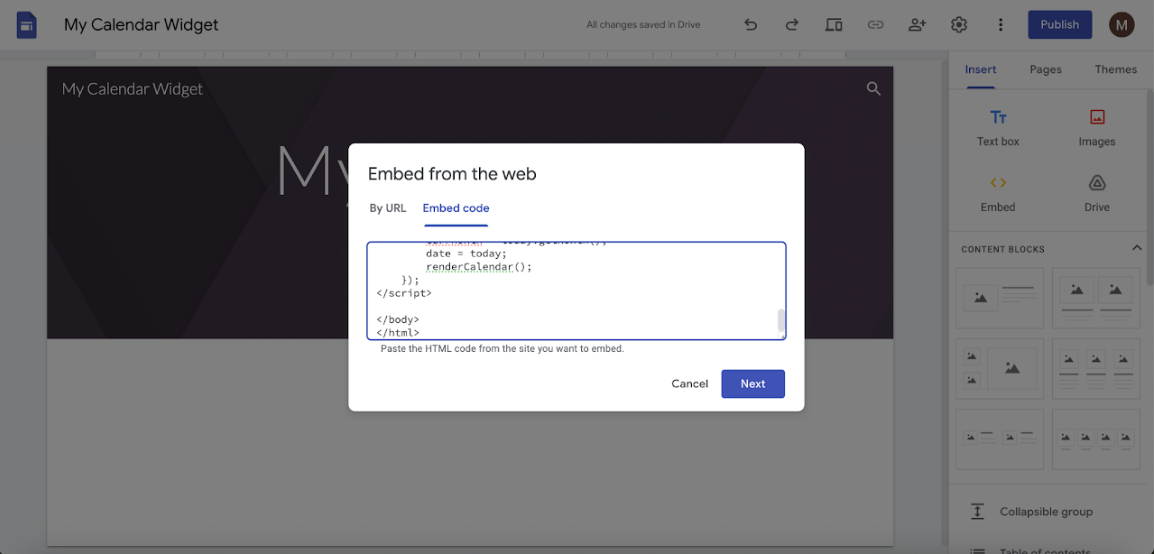
You should now see your software embedded directly on your website. You can resize or reposition the embed as needed.
## Step 5: Publish the Website
1. Click the **Publish** button in the top-right corner
2. Choose a domain name (no spaces or capital letters)
3. Confirm and publish your site
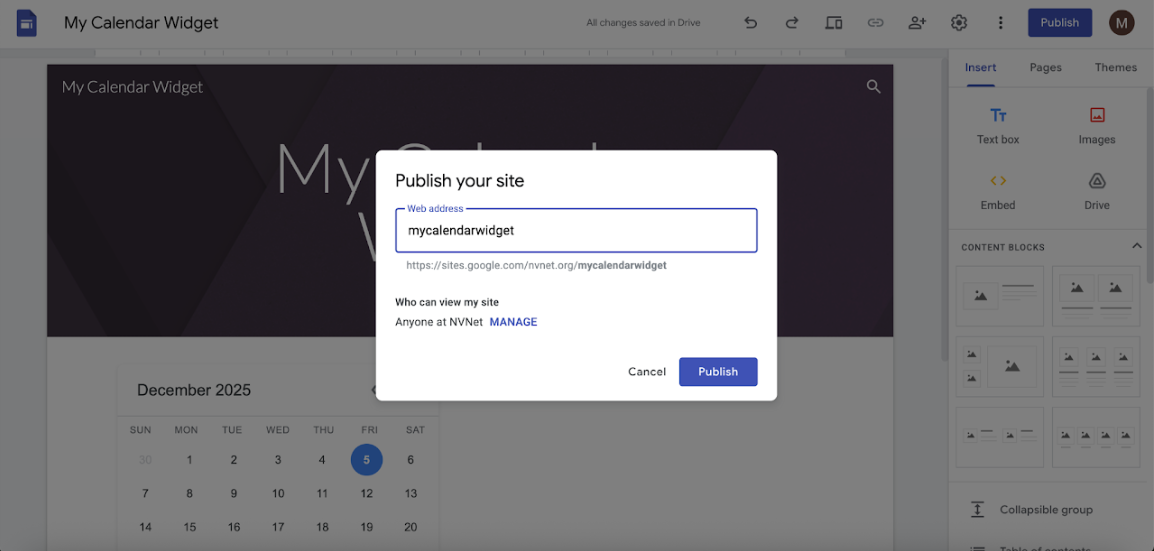
Once published, you can copy the public link and share your project with others.
## Why This Matters
This workflow demonstrates how AI can be used as a practical tool for software creation — not just for generating ideas, but for building and deploying real, functional applications.
The same process can be applied to dashboards, widgets, visualizations, and interactive tools across many platforms.